PartsTech Guide
Objective
- Automate outside vendor part quotes, directly from within Tire//SMART system.
- While maintaining expected margins for all quotes, from all staff.
- Compare prices and availability from all your key suppliers at once, on one website.
- Save time and reduce the hassle associated with wholesale automotive parts procurement.
Setup
- 1. Contact Tire//SMART to collaborate with PartsTech for your local
parts supplier integration.
- 2. Enter in your PartsTech credentials here.
- 3. Read the documentation below and watch the tutorial on how to use the integration.
- Reach out to Tire//SMART with any questions.
Tutorial
- Tire//SMART and
PartsTech integration steps.
- At the end, there is a video demo of the whole process.
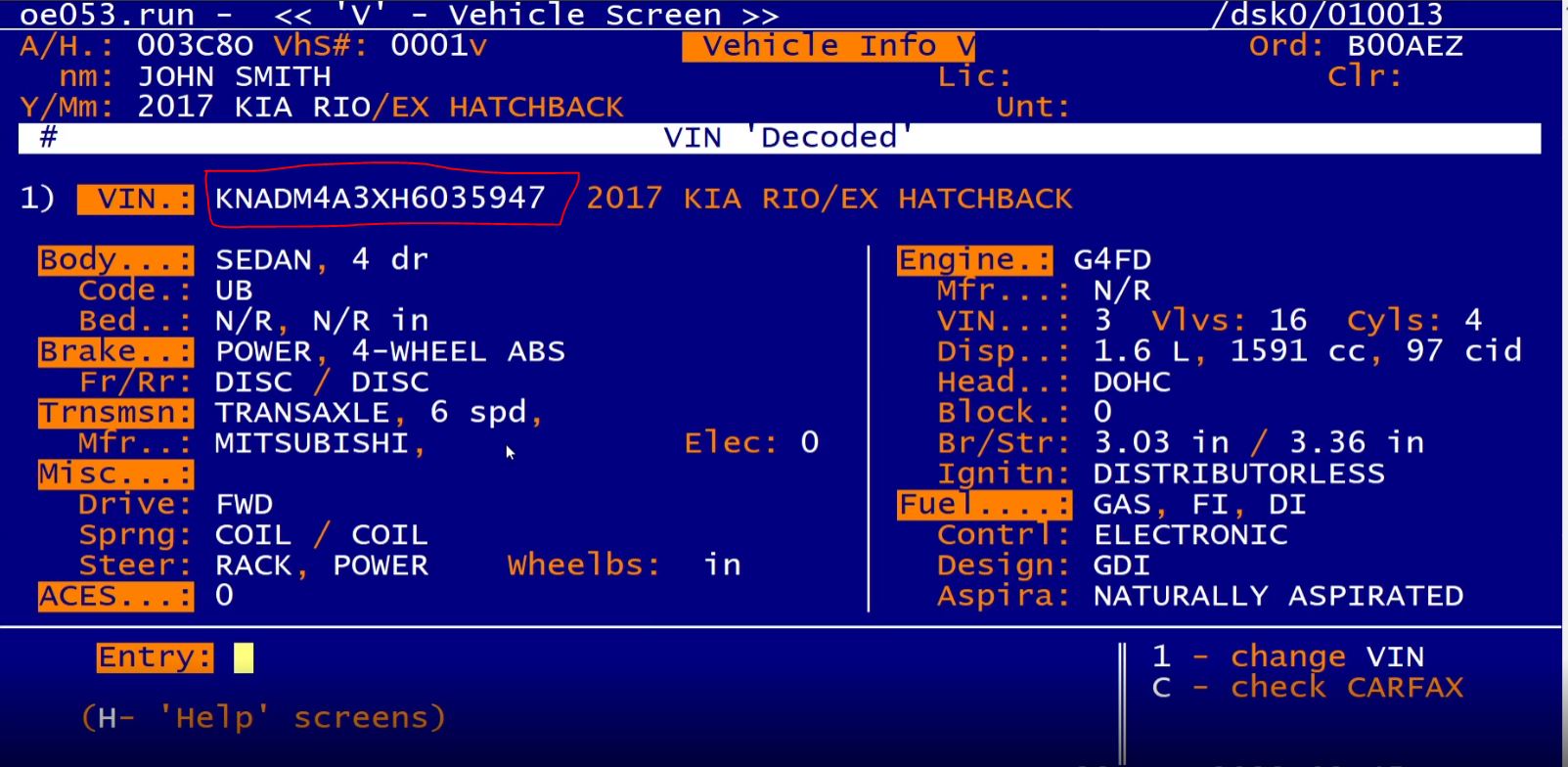
- 1. Collect the VIN for the vehicle
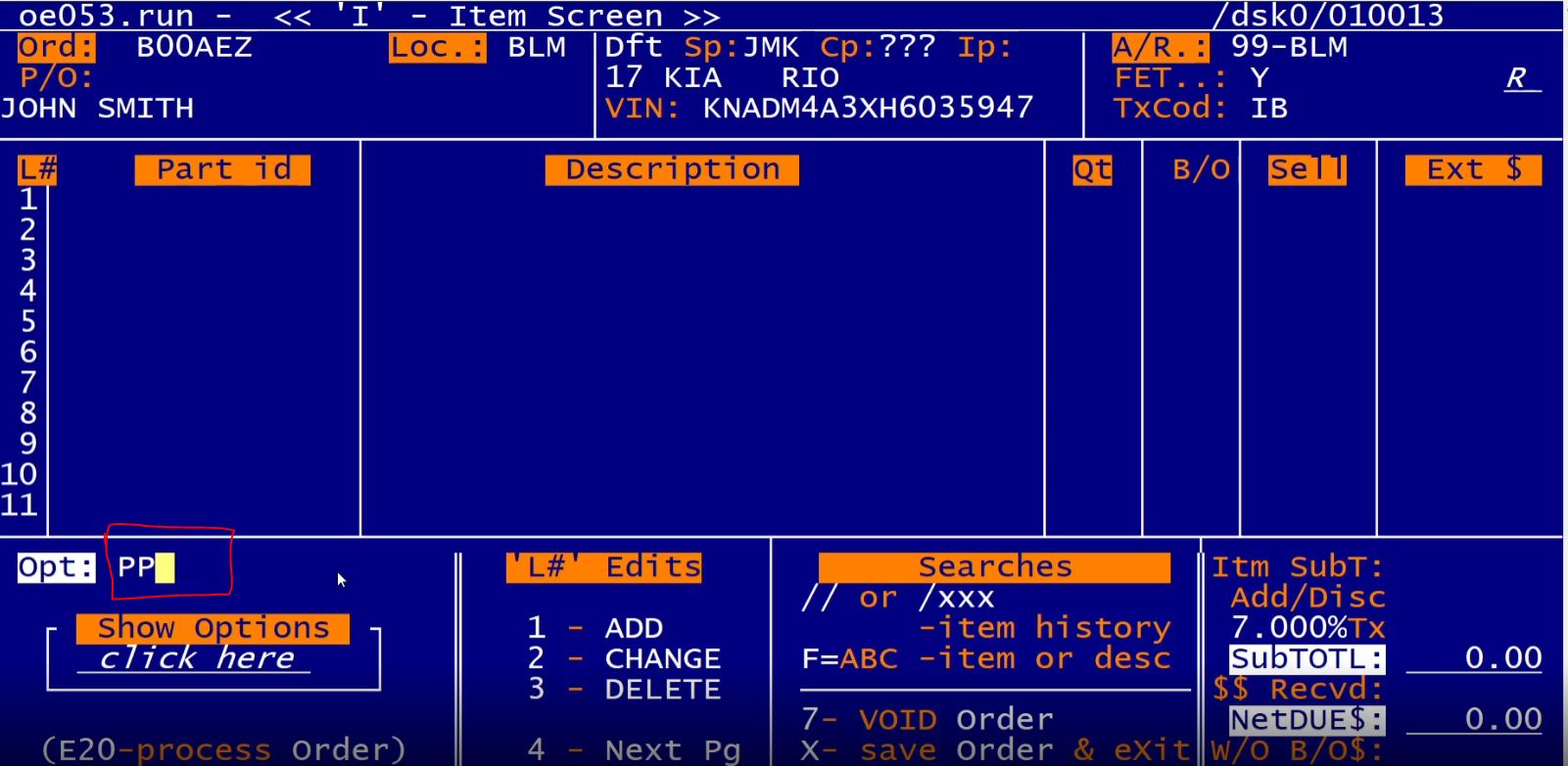
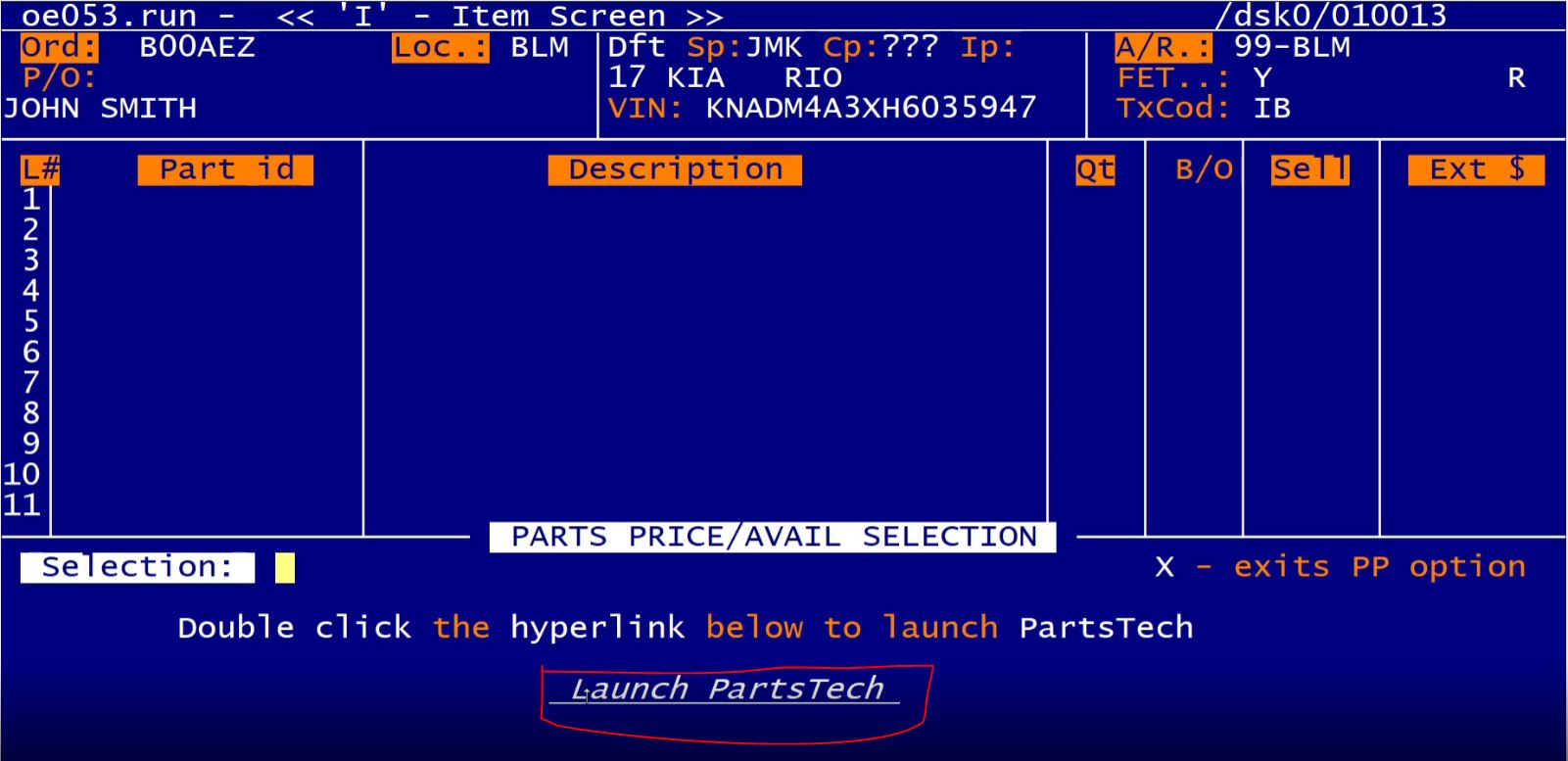
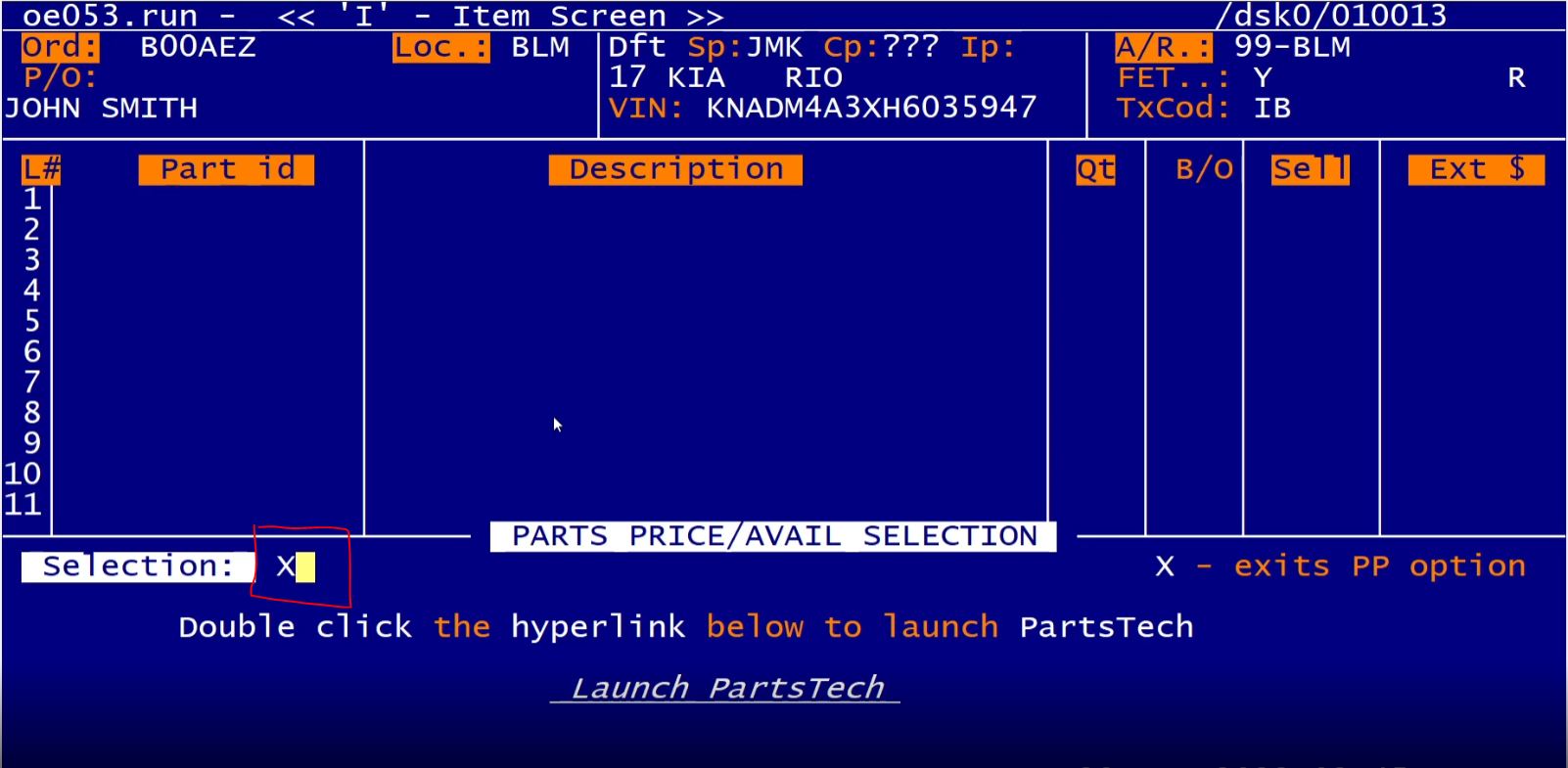
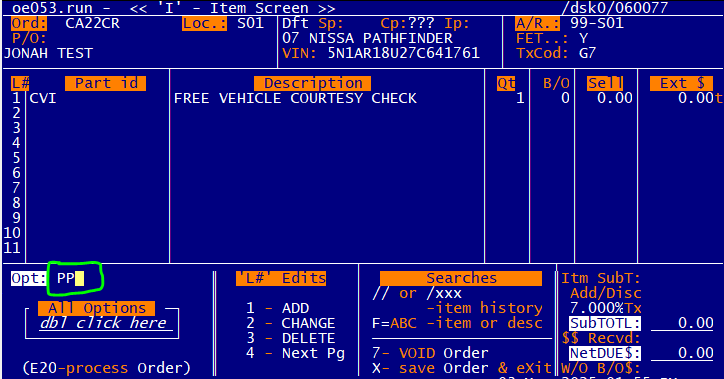
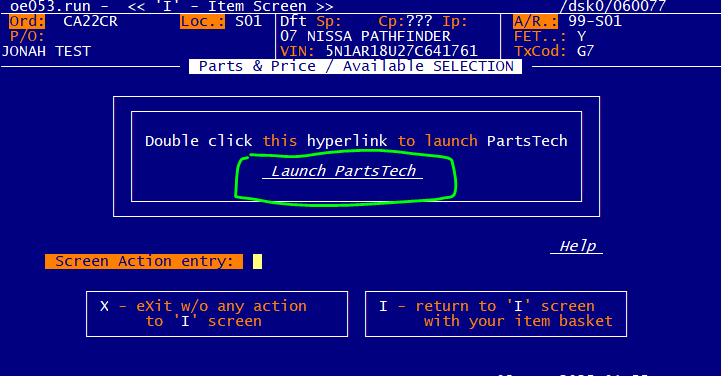
- 2. Use the PP ('Parts Proposal') option - then double click the PartsTech
launch hyperlink.
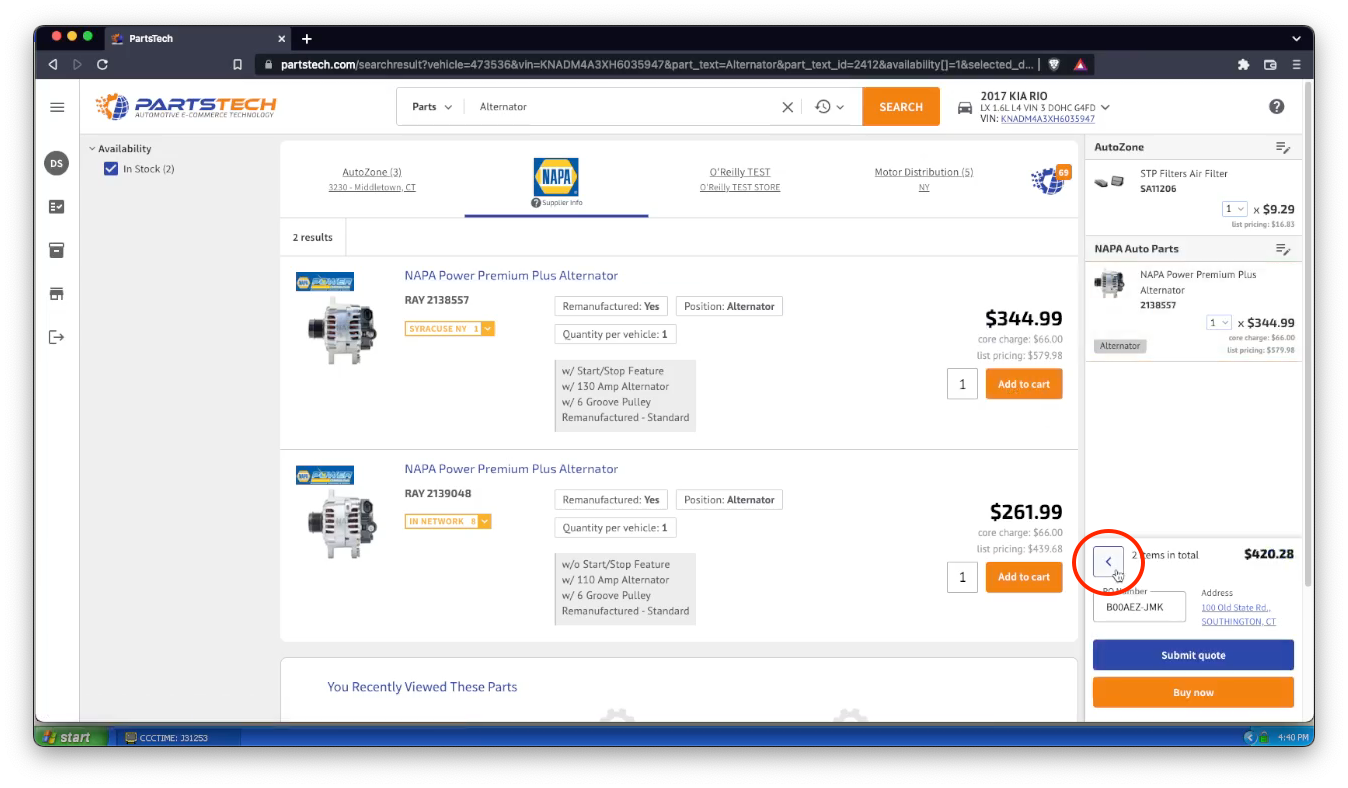
- Simultaneously select multiple parts from multiple vendors, on the same search.
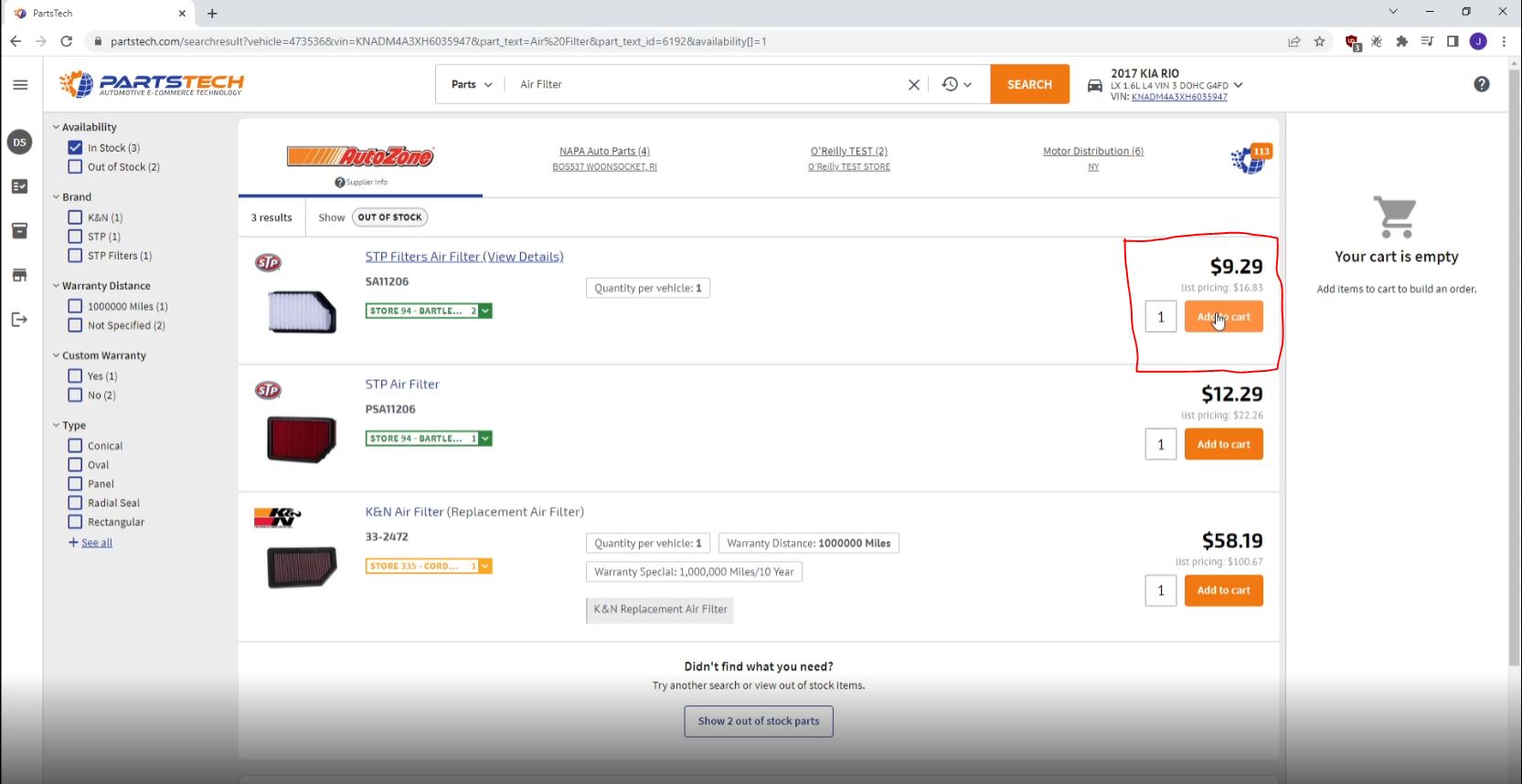
- 3. On the PartsTech website now, you will notice the vehicle is already selected.
- Search for your desired parts. Parts can be selected from multiple suppliers.
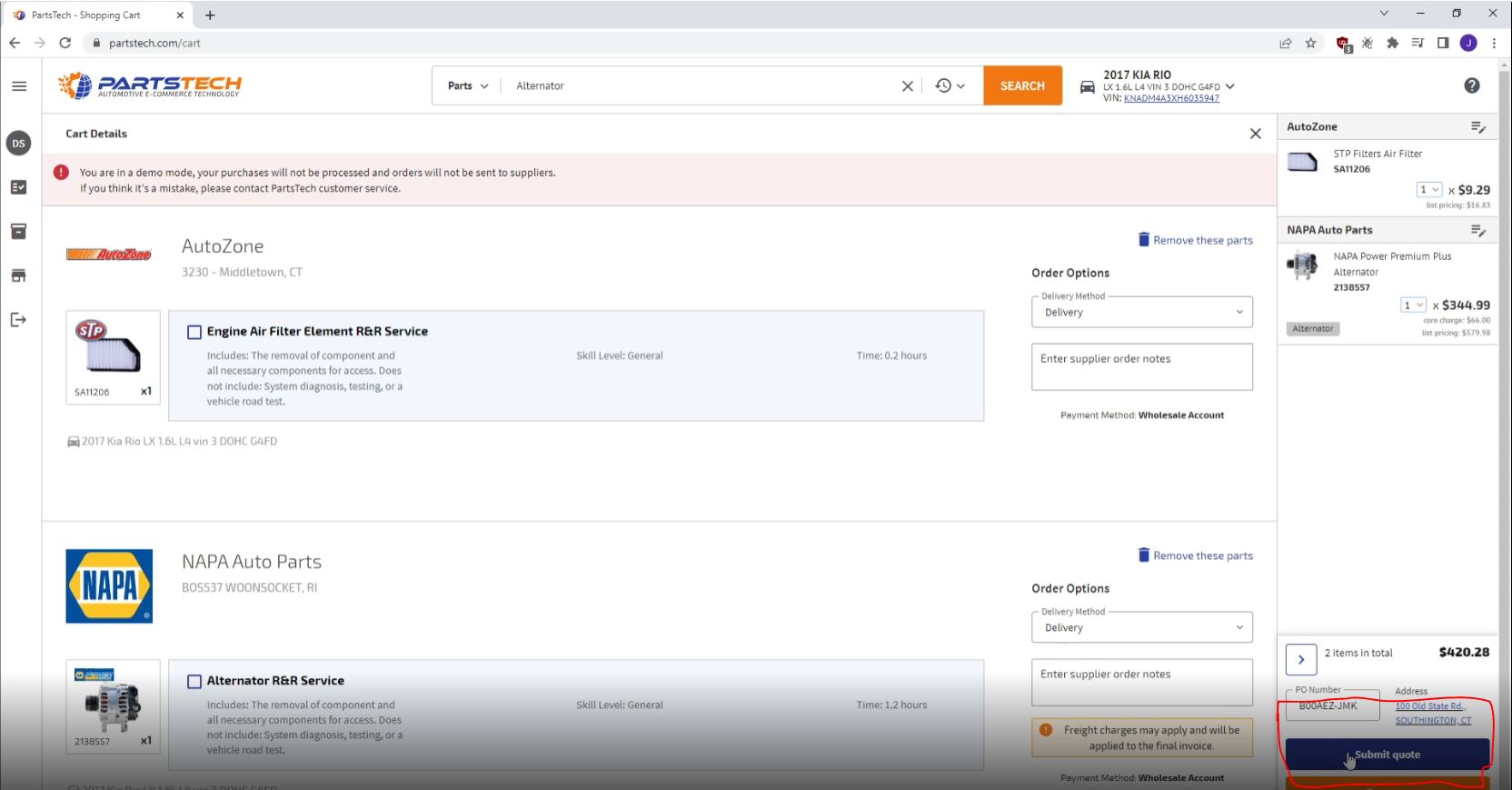
- 4. Select "Submit Quote" to export the cart.
- 5. Return back to Tire//SMART.
- 6. 'X' out of the PP option.
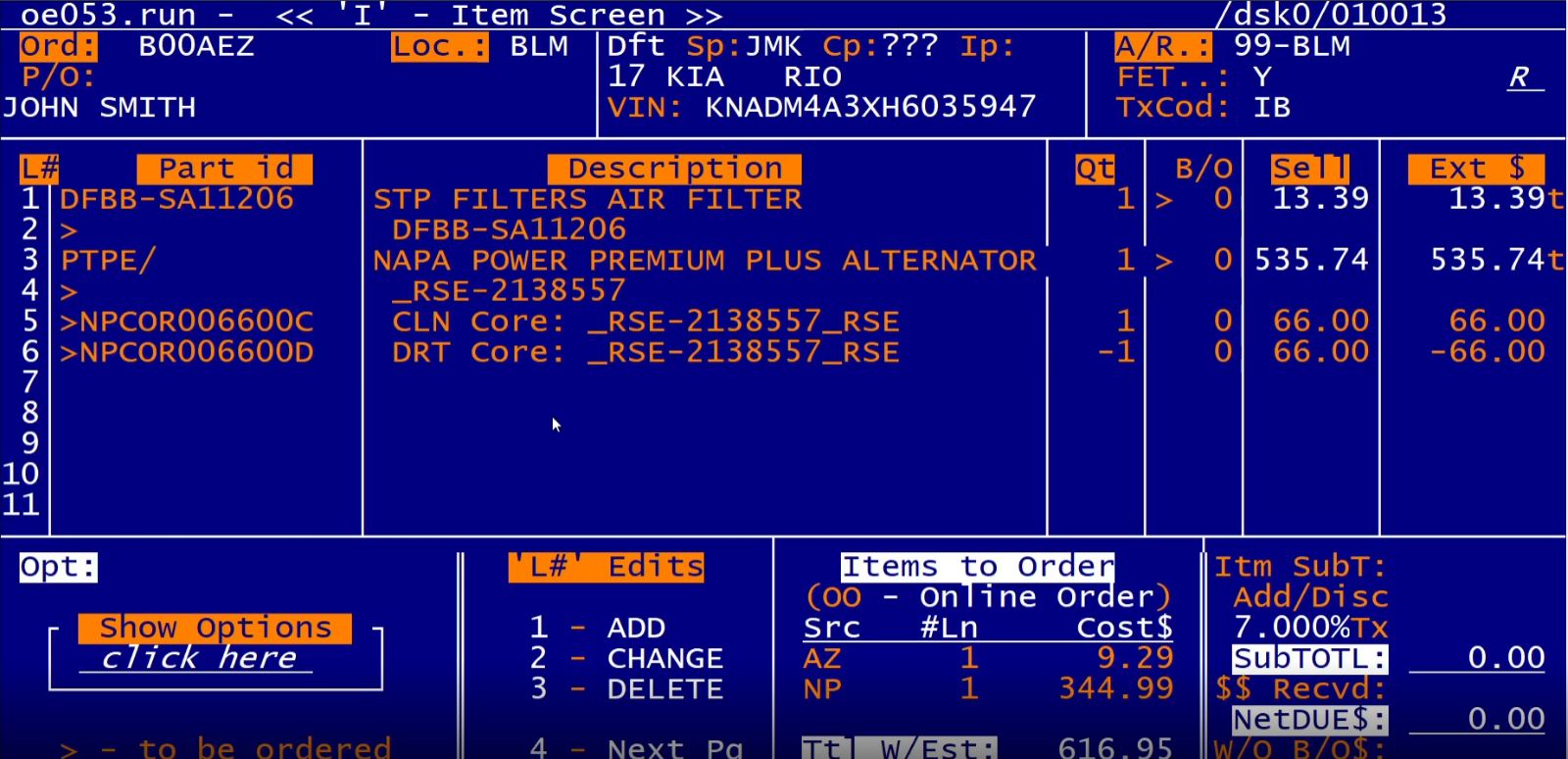
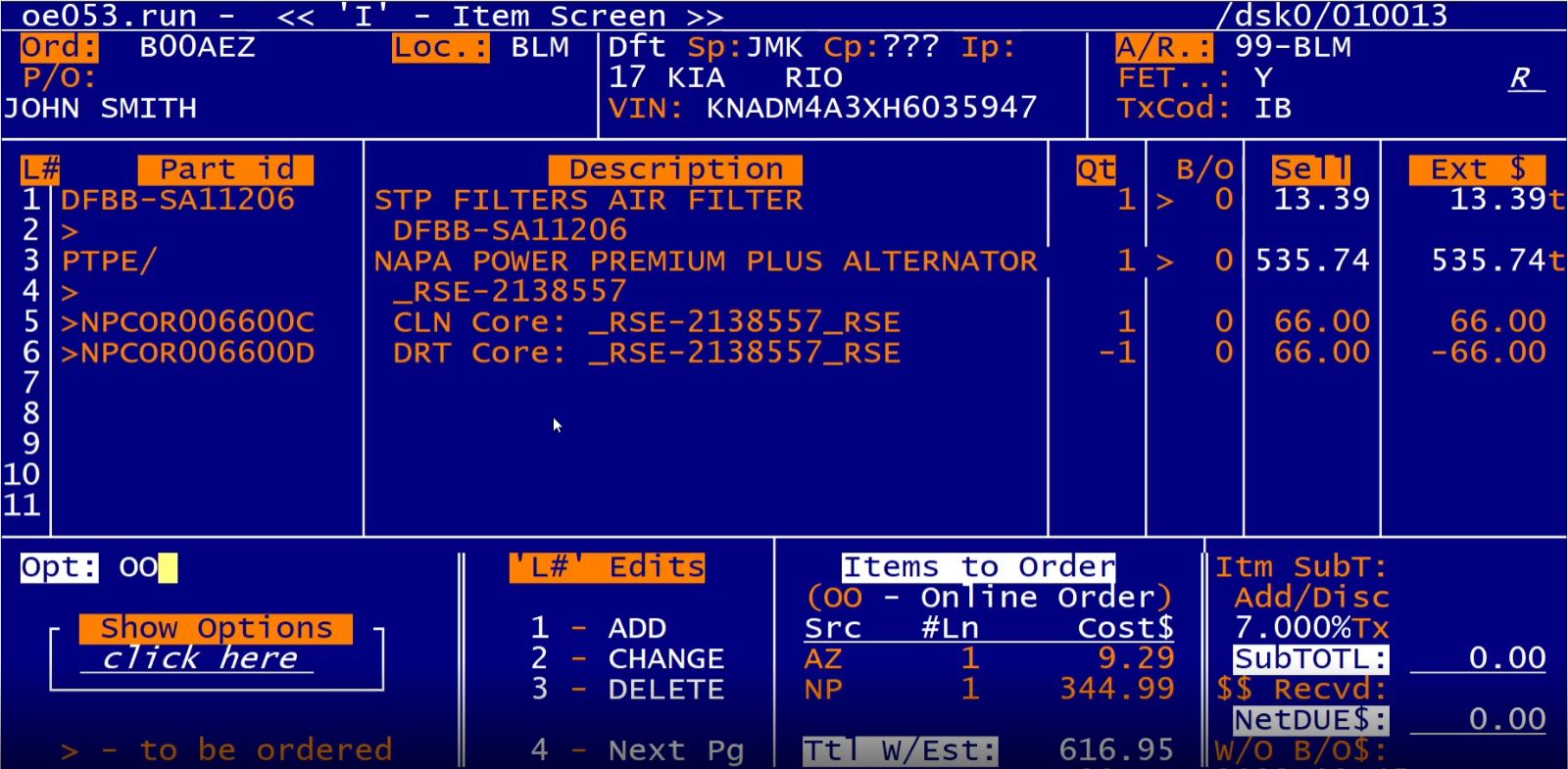
- 7. Take note of the parts being on the I screen.
- Low intensity is used to indicate unordered parts.
- Part 'sale' prices are optionally loaded using Tire//SMART exclusive
J-Calc option.
- Assuring uniformly maintained and expected margins for all quotes, from all staff.
- This is a very important time and management feature.
- 'Clean' and 'Dirty' item cores are automatically tracked.
- Parts suppliers' item ids are optionally auto created in your inventory system for
- Easy control/tracking using Tire//SMART exclusive J-Dash visual
data graphing.
- 'Item' screen shows a an Items to Order preview.
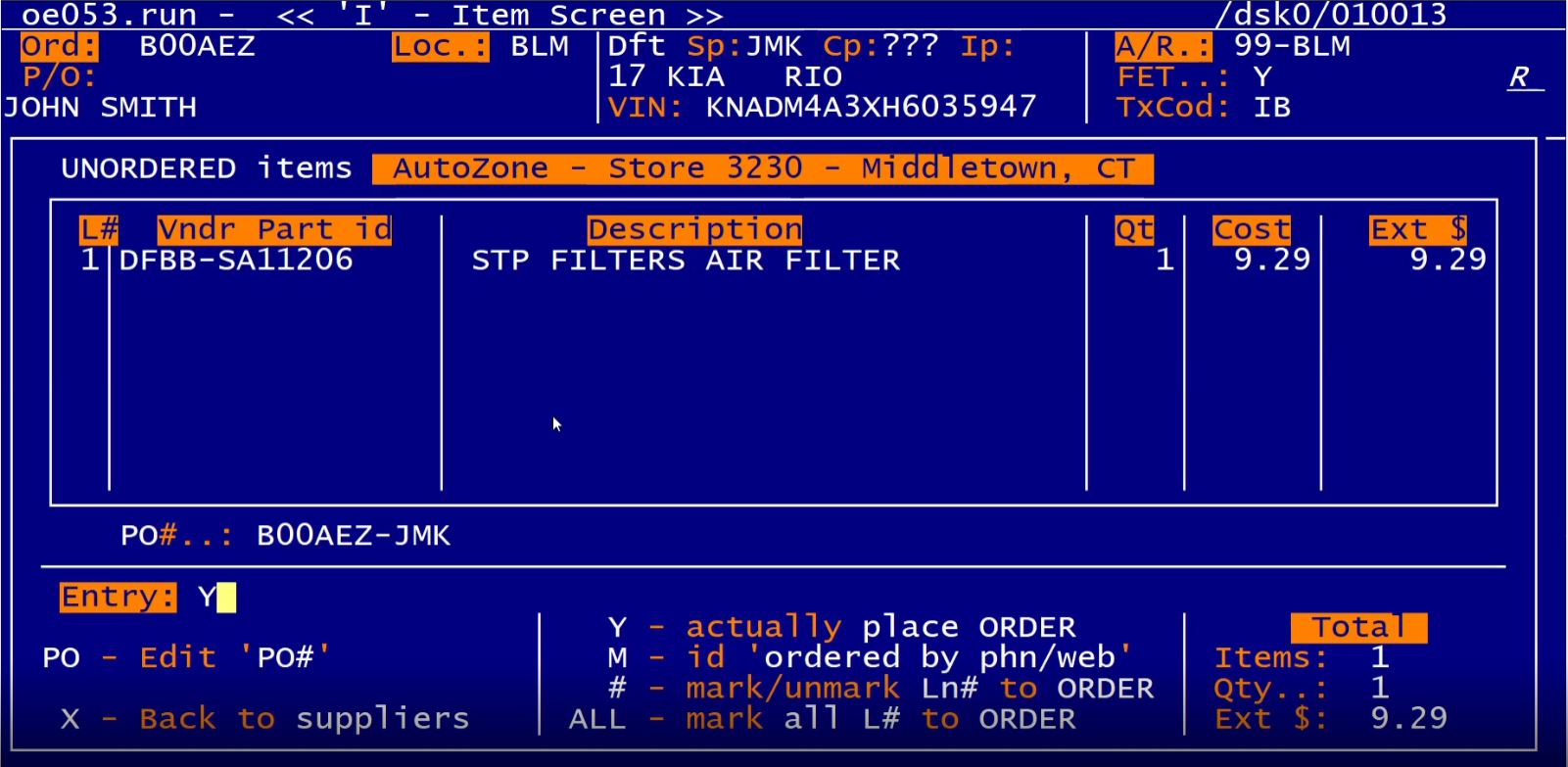
- 8. Use the OO (Outside Order) to place multiple source orders.
- Select the desired supplier.
- Enter Y to order the parts.
- Supplier source's assigned invoice id is dynamically tracked for:
- Easy control on inventory receipt.
- Optional automatic A/P entries.
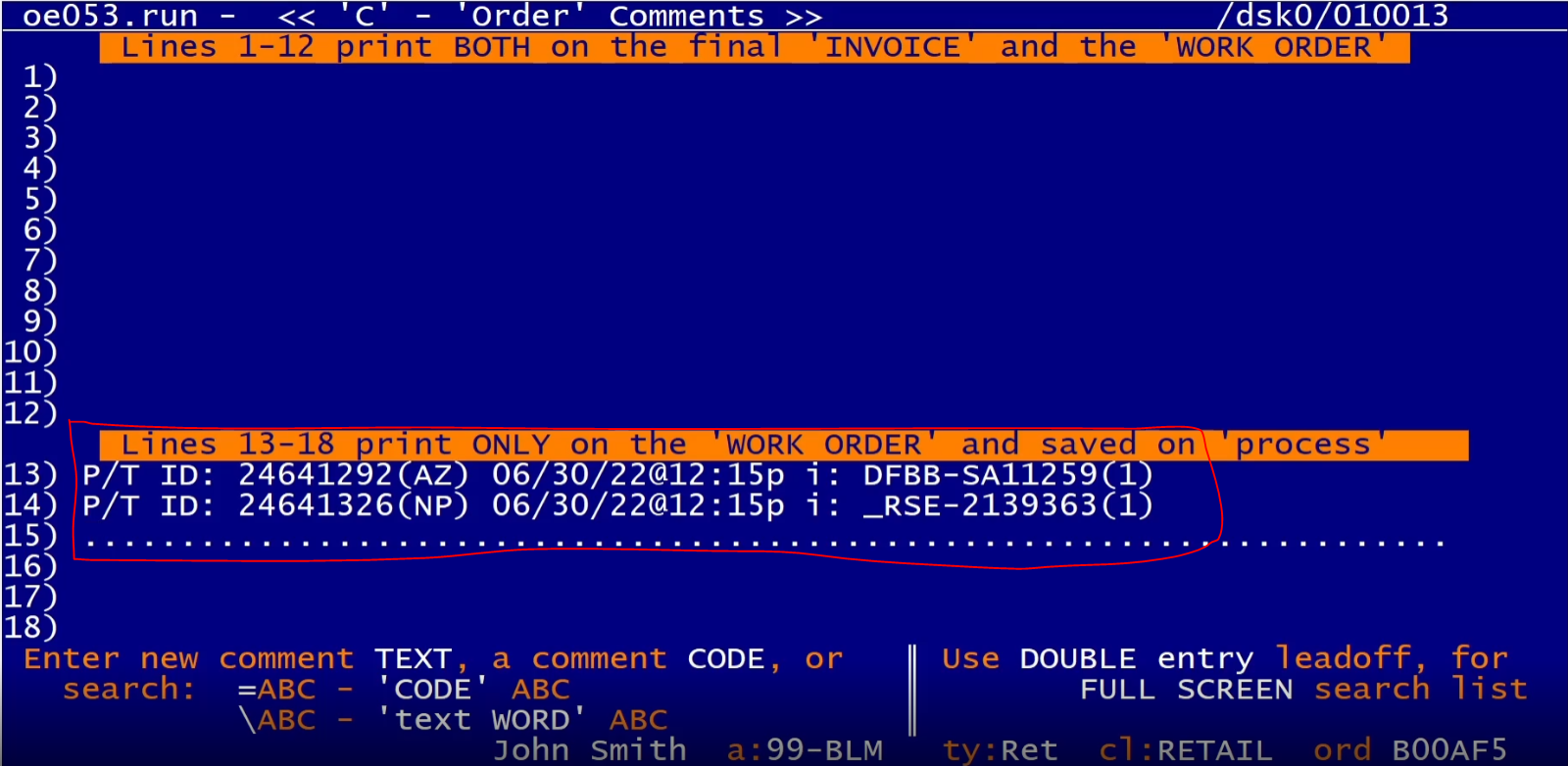
- 9. Navigate to the C screen to see the summary of the orders.
- See video demo to see this process in whole.
Labor Tutorial
- Labor can be added on without or before parts
- The example below shows adding labor without a part.
- In section 7 below, adding labor as an addition to a part item is shown.
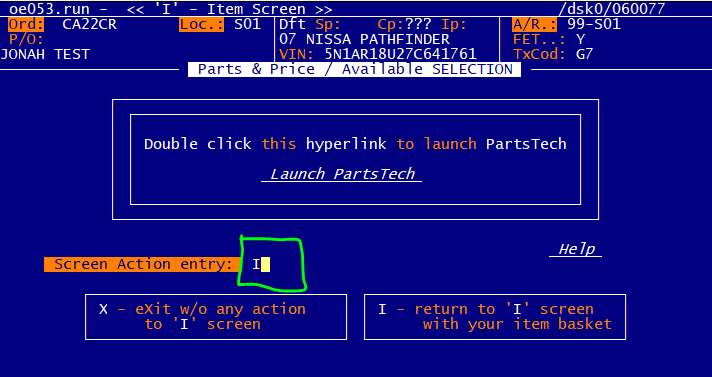
- 1. Use the PP ('Parts Proposal') option - then double click the PartsTech
launch hyperlink.
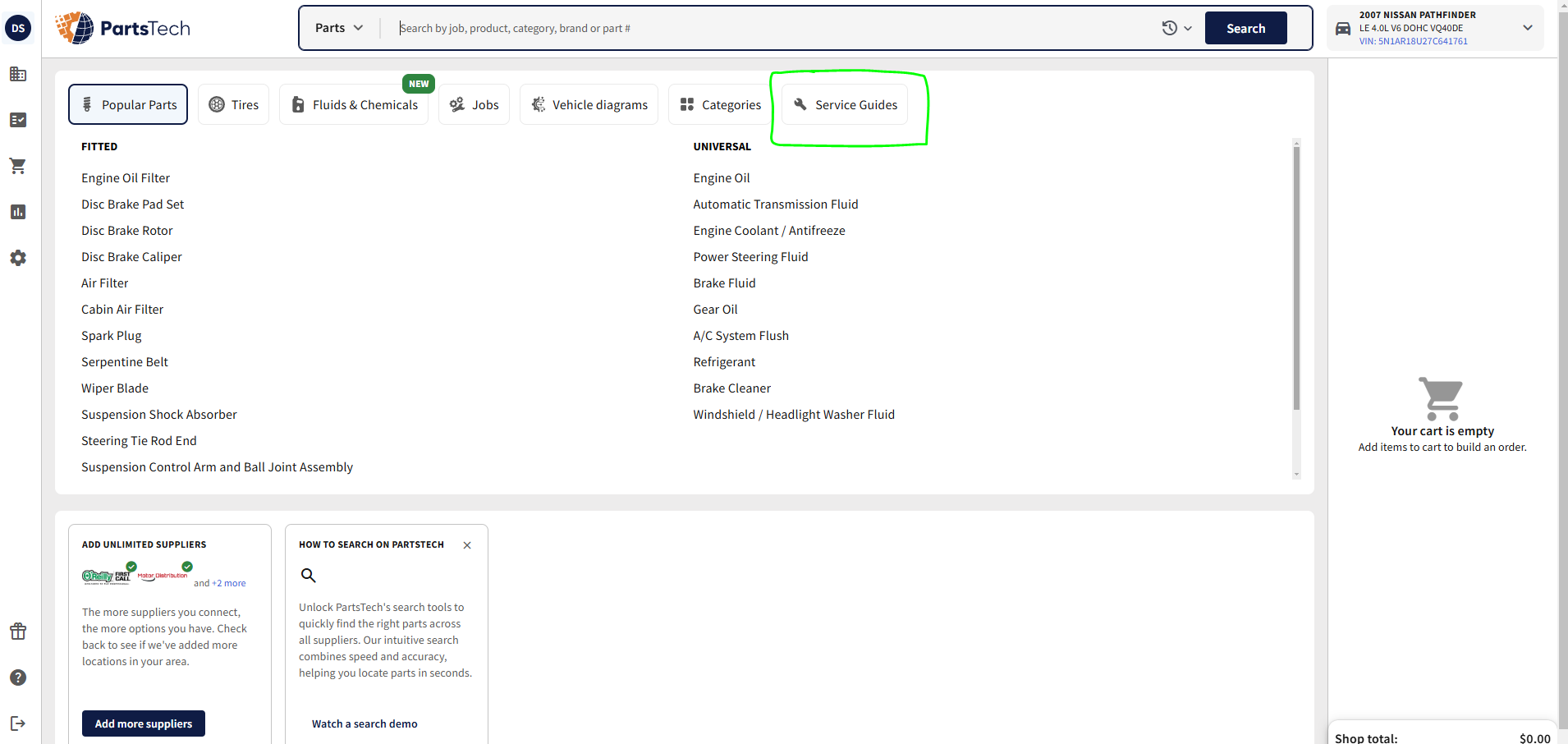
- 2. On the PartsTech website click on the "Service Guides" button.
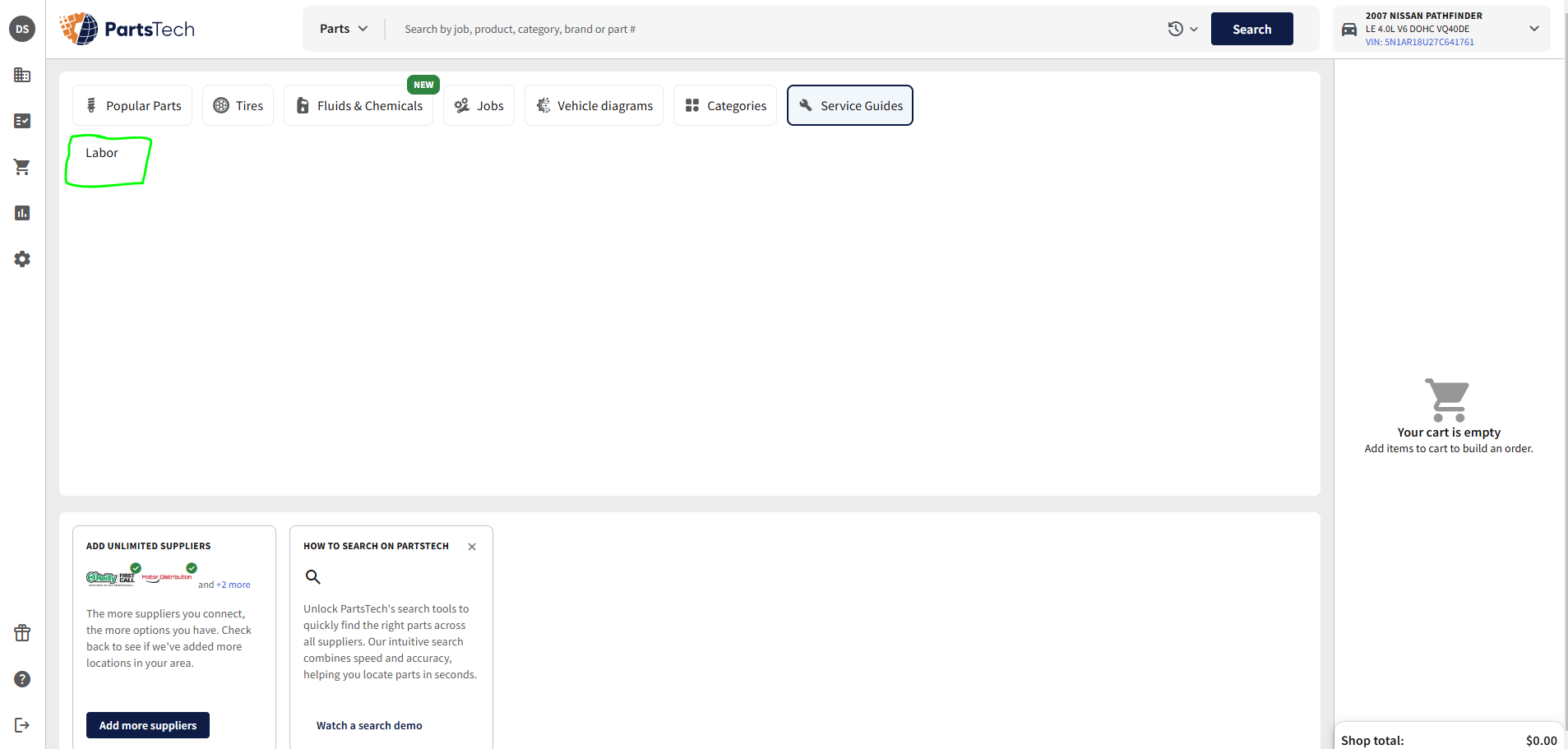
- 3. Then, click "Labor".
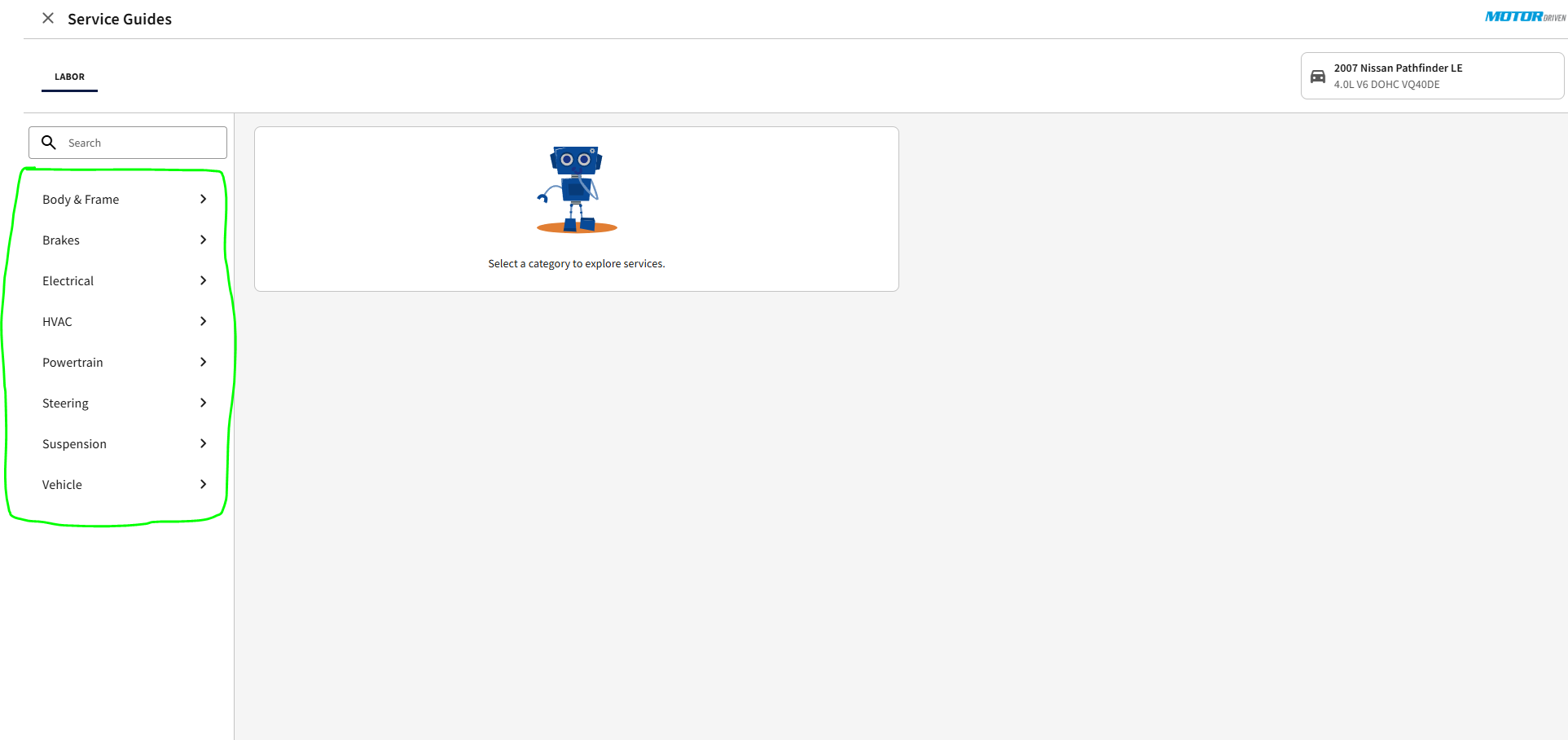
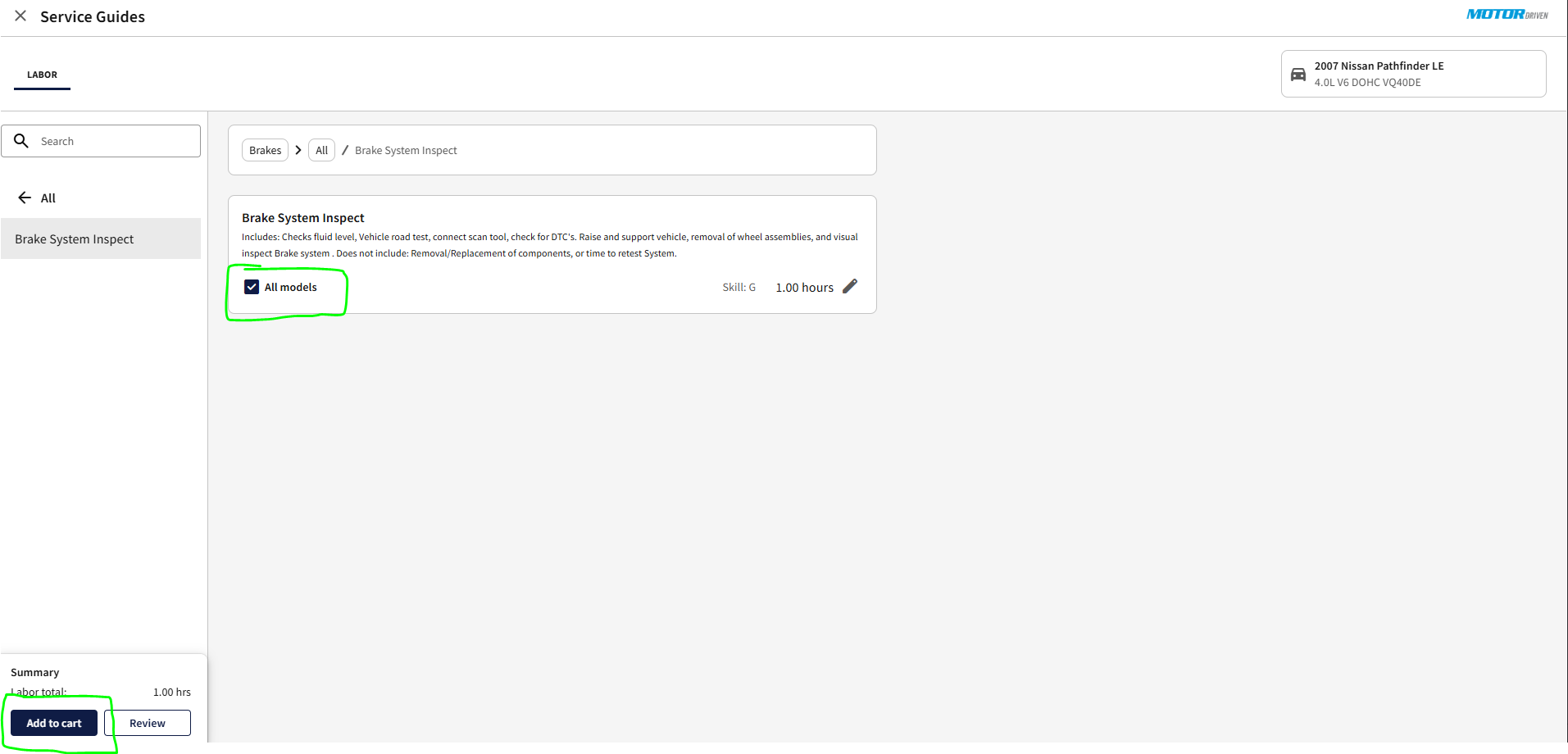
- 4. Select the type of labor to add to the order.
- 5. Go through the labor options and click the checkbox and then "Add to cart."
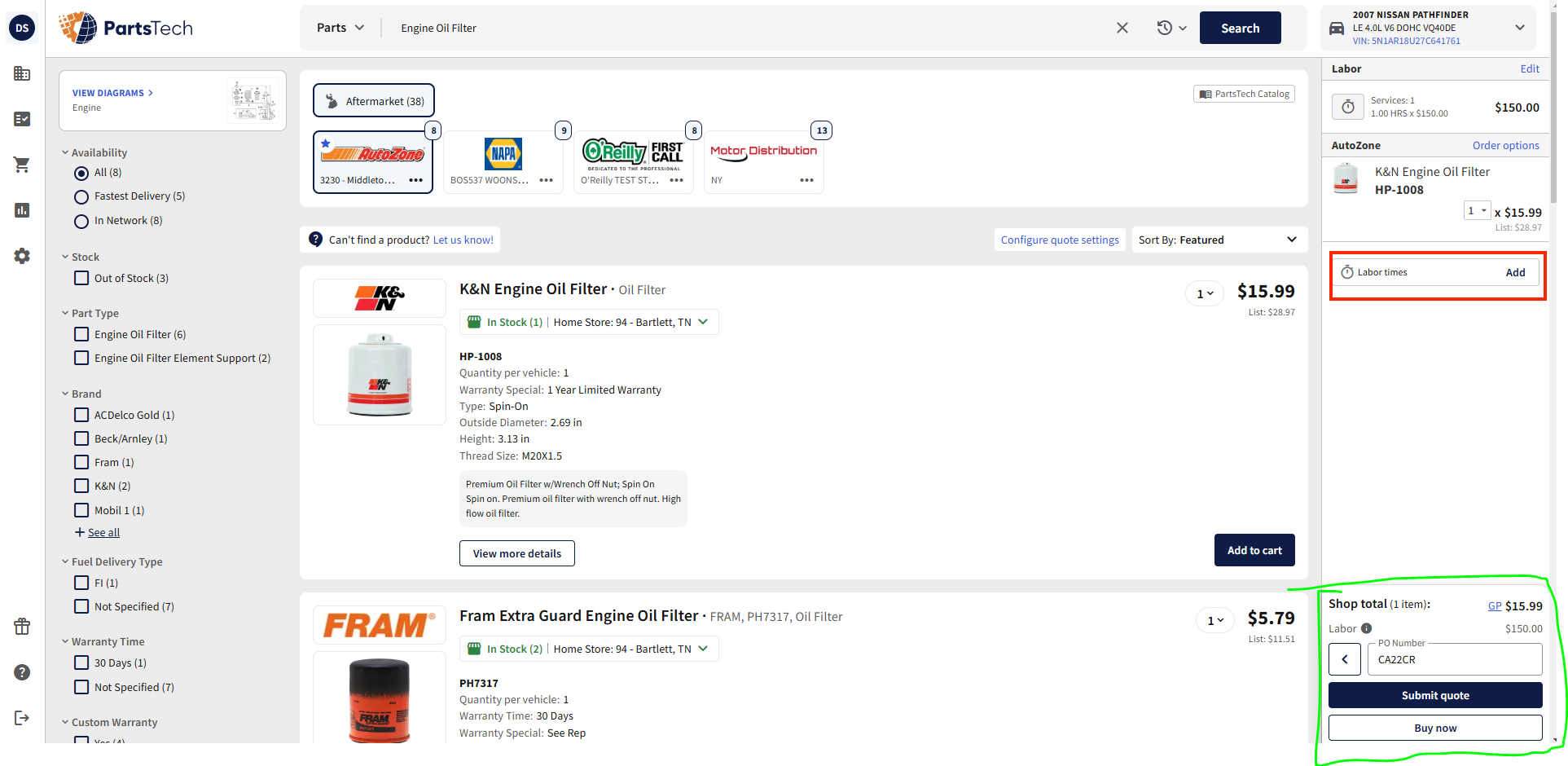
- 7. Add on additional labor items and parts.
-
Click the circled red box to add a labor item directly from a part.
- When finished, either click "Submit quote" or "Buy now" depending on your use case.
- 8. Return to the Tire//SMART system
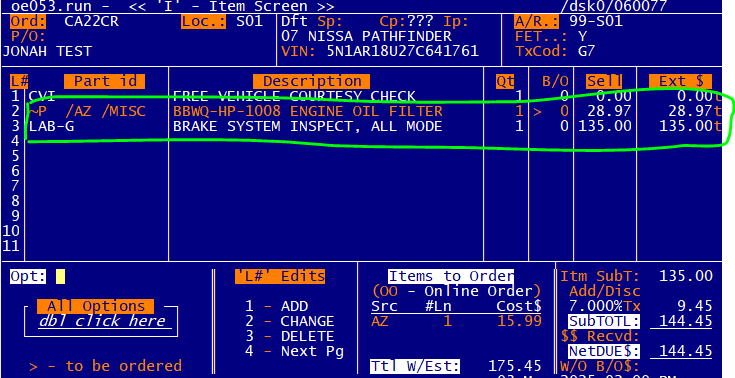
- 9. The items will be listed on the 'I' screen, ready to be processed.
- Note: Even if using the "quote" feature, labor items will be carried in as actual items
- If not wanted, delete them using standard procedure
- 10. Process the order as would be done if only parts were ordered.
- See general tutorial section for more info on this.