1. Benefits
- Vendor staff picking up a dirty part's core will know what is ready.
- Site can track if:
- A core or warranty has been lost and can't be sent back.
- A core or warranty was sent back - but a credit was not received yet.
How it Works
- When an order is finalized with a 'return' dirty part's core:
- Automatically, a product warranty claim is generated.
- Tech staff add a dirty core tag with a barcode.
- Sales counter staff attach a pre-registered dirty core barcoded tracking tag to the work order
- For shop staff attachment to the removed part.
- Supply vendor pickup staff confirm all cores are accounted for - as they sign an invoice documenting
pickup.
2. PartsTech Automation
-
When using PartsTech, all the prompts can be skipped as the item and its info is added through
PartsTech's order process.
3. Manual Entry
-
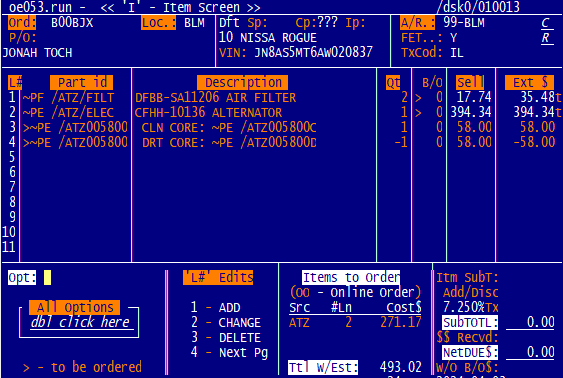
1. There is an order with a part with a core.
-
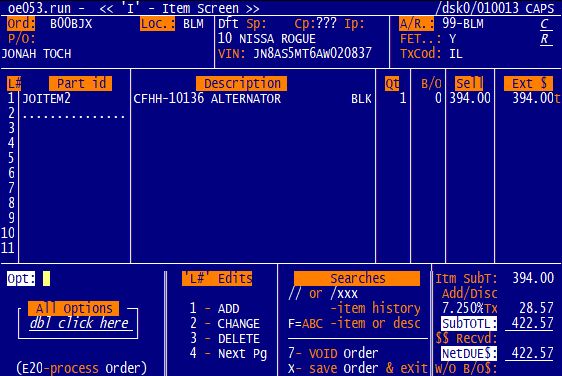
2. Add generic core part id to the order.
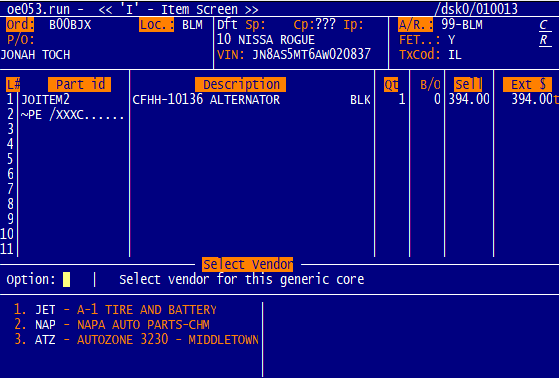
- 3. Select vendor from list of as set up in A/P option 1.
-
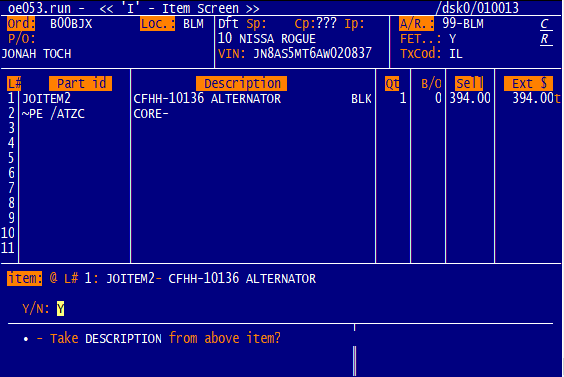
4. Select 'Y' to take description from alternator.
- Or 'N' to enter one manually.
-
5. The Dirty Core be set automatically after the clean core.
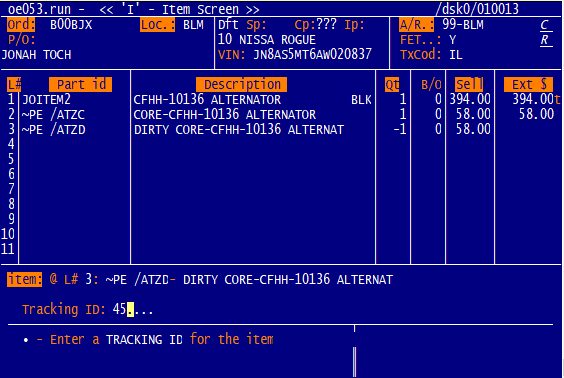
- Fill in the tracking ID for the dirty core.
- This will match the printed Core//TRACK barcodes.
- Enter the number without the leading 0's.
- They will be added automatically.
-
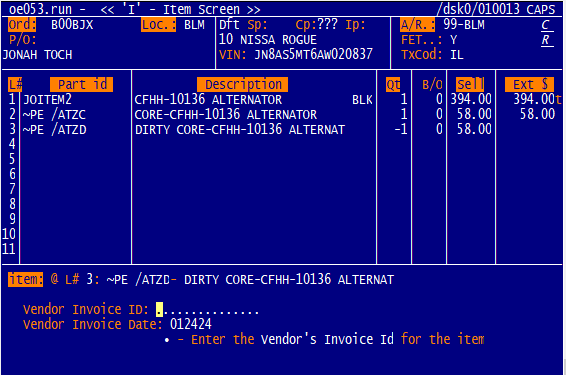
6. Enter the vendor's invoice id and vendor's invoice date.
- It's okay to not fill this in if it is not known.
-
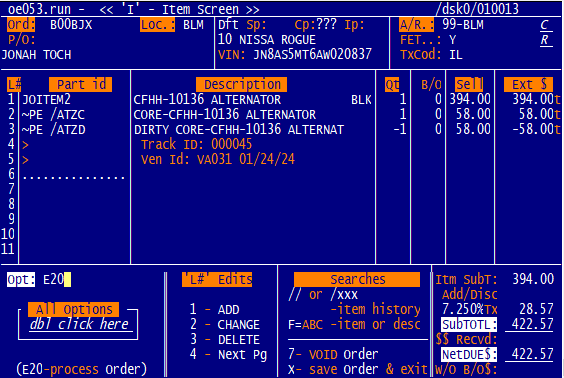
7. The core process is now complete.
- When the order is processed (an E19-E21 option) the dirty core will be added to another work
order.
4. Automated Vendor Work
Order Core Tracking
-
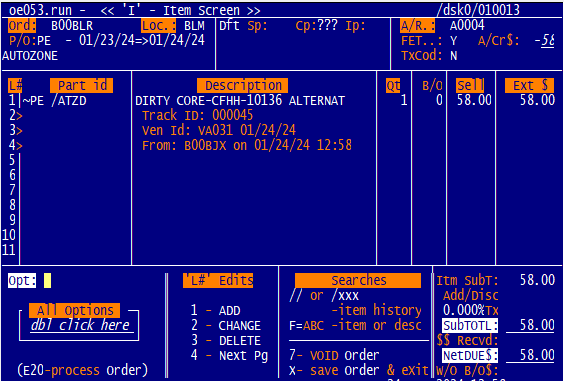
1. On the new order the dirty core is there along with all of its comments and its tracking id.
- The order will be made to the vendor's A/R account.
-
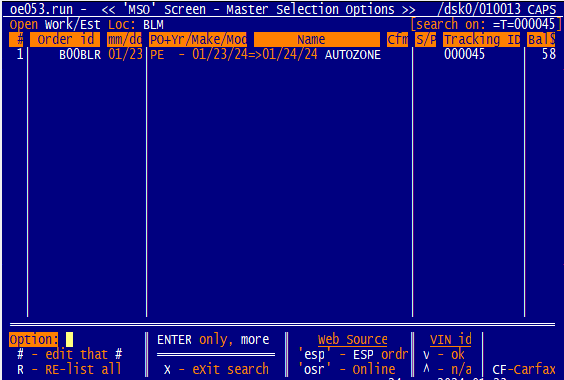
The PO shows what items the order contains.
- PE - 01/23/24=>01/24/24 shows that there are cores with product type PE
from the dates 01/23/24 - 01/24/24.
- Open Vendor orders are created exclusive for each part 'product type.'
- Such as PE for "parts electrical."
- If an order already existed for this core's product type it would go on that order.
- Otherwise, a new order is made.
-
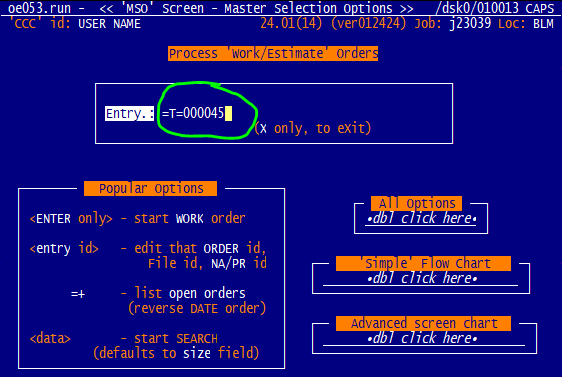
2. To retrieve data on the dirty core orders scan the barcodes on the dirty cores after a =T= on
the MSO screen.
- Or do a =P= to search on the PO.
- Example: =P=@PE
to find dirty cores for type parts electric.
-
3. This will pull up the order with the tracking id on it.
- Completing the process of not losing the dirty core.
5. Claims and Credits
-
When vendor staff pickup cores:
- a. Process open work order and have staff sign off on acceptance of cores as referenced.
- b. Back office staff need to:
-
1. Be aware of pending credit to be received.
- 2. When credit is received:
- a. Apply in A/R (O/E) opt #7.
- b. Copy to A/P using A/R opt #49 to apply to outstanding vendor invoices
due.
1. Processing Supplier Return Stock
2. O/E - Setup Trackable Cores
-
1. Determine what product types cores should be created for.
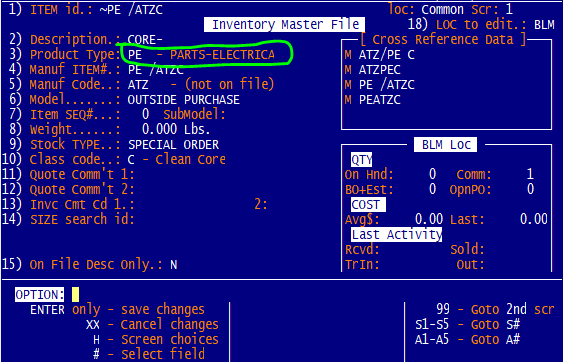
- Such as PE for Parts Electric.
- Use O/E opt #28 type 'DP' to see possible product types.
- 2. Contact JMK to run custom JMK program INVLOD to auto generate these parts.
- This step isn't needed if you are using parts from PartsTech.
3. Supplies
-
Receive Core//TRACK labels from JMK.
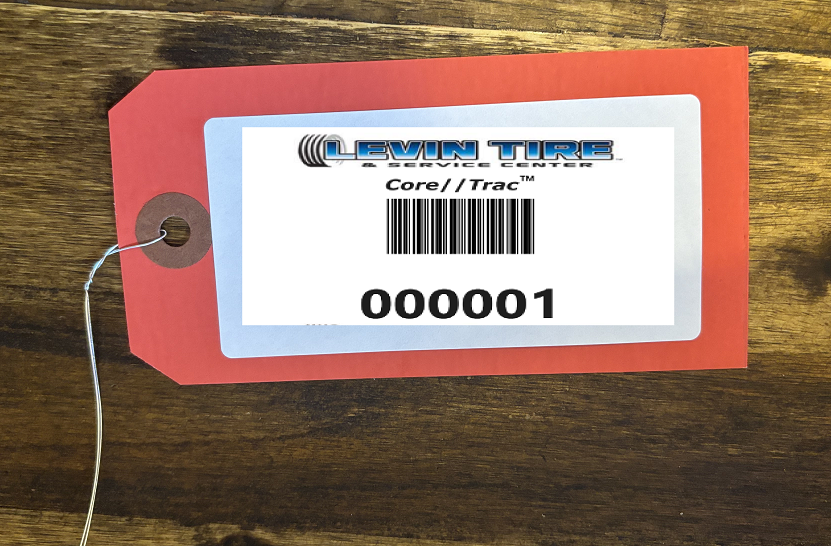
- These will go on the dirty cores and can be scanned to help find corresponding work order
the core is on.